
Click on Windows search and type "Windows Defender Firewall" (on Win 8 type "Windows Firewall").
Select the option called Windows Defender Firewall (on Win 8 select Windows Firewall under Settings):

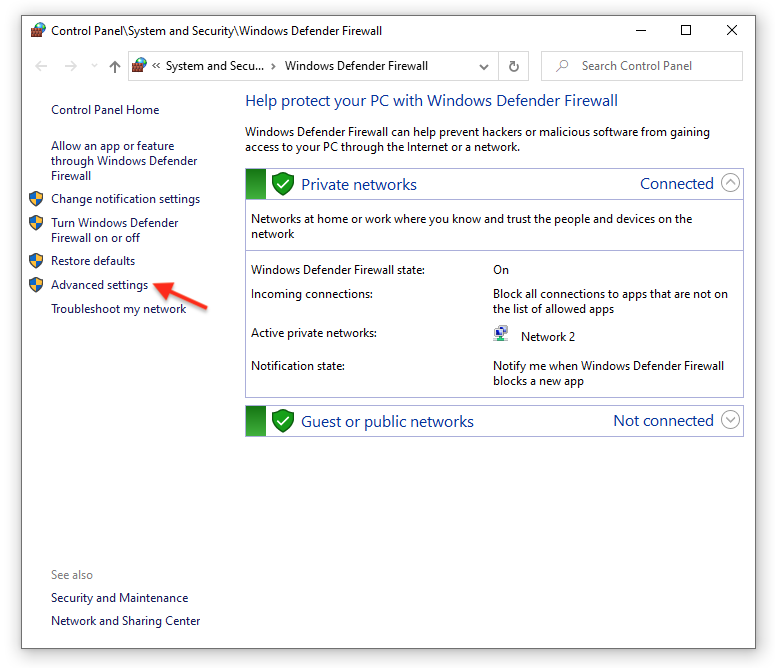
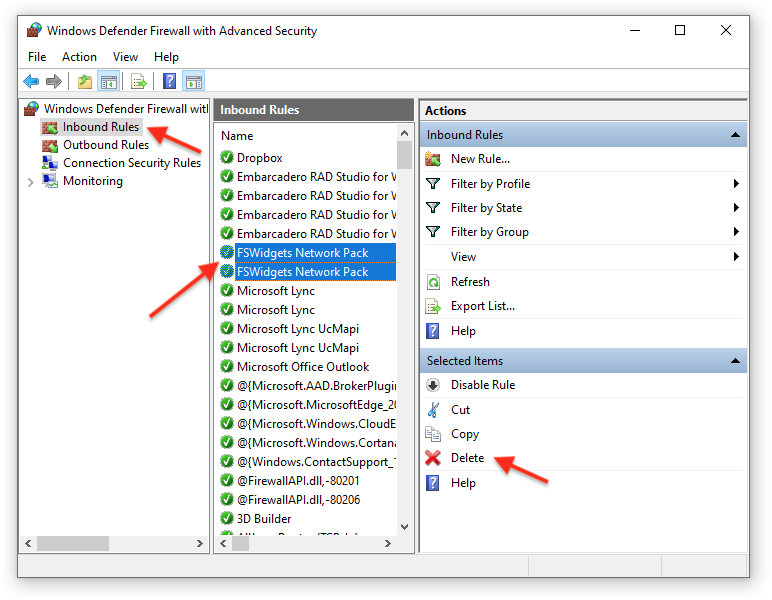
In the left panel select Inbound Rules.
Under Inbound Rules, select and delete all entries for the following (if present):
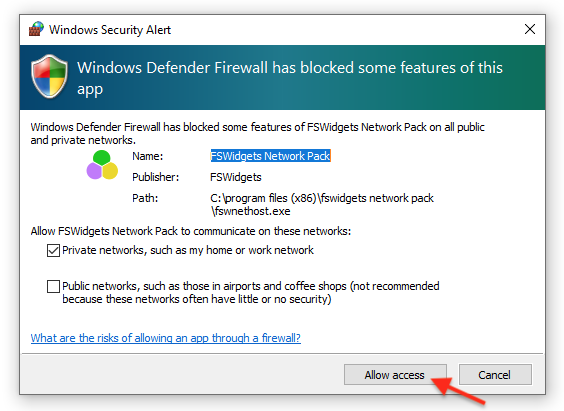
The final step will generate a Windows Security Alert by doing the following:
MSFS - launch the simulator
FSX/P3D - launch the simulator
FS9 - launch the FSWidgets Network Pack utility and start the server
X-Plane - launch the simulator
Aerofly FS - launch the simulator and turn on the FSWidgets option
Click Allow access:
Now try connecting the app again using the IP address and port number shown on the FSWidgets Connect info panel, or in the case of X-Plane the IP address and port shown on the FSWidgets Connect panel (select Plugins > FSWidgets Connect > Show Info in the X-Plane menu). Aerofly users please follow our Aerofly FS Help instructions.
Important Note: If you use a third-party firewall you will need to add an explicit rule to unblock the FSWidgets Connect service (FSWidgetsConnect.exe), or the Network Pack (FSWNetHost.exe), or even the simulator itself (e.g. X-Plane.exe or Aerofly_FS_2.exe).